Showing posts with label Tutorials. Show all posts

How to Shutdown Windows 8

Learn How to Shutdown Windows 8. Starting from Windows 8 there is difference in ways of use. Follow these easy steps to shutdown your PC with windows 8.

Windows 8 Power Options – Overview

The newly released Microsoft Windows 8 has a quite elegant design but yet so mysterious functionalities. These are not very easy to perform. As a newbie on this new operating system, it is quite difficult to understand the basic concept which were also used in the previous operating systems of Microsoft. For me the biggest dilemma is the invisible ‘Start’ button which is now replaced by the new interface introduced by Microsoft and called ‘Metro UI’. Some people love this interface some still love old one.

How to Shutdown Windows 8 – Step By Step Way

In this tutorial we are about to tell you that How can you interact with your ‘Slide-Up’ Options and to use ‘Power Options’ your PC. Well here are the following instruction to solve you problem but do consider reading each step because we don’t want you to get lost.
Step #1: First roll over your mouse to the upper right corner of your windows screen and an invisible slide-up bar will show up. If it doesn’t happen then you can also use the shortcut key to perform it which is Windows+C 

Step #2: On that Slide-Up bar there will be a lot of options. Click on that last button which is ‘Settings’ and looks a metallic nut shape.
Step#3: Click on the Power button and select your desired operation: Sleep, Shutdown, Auto Update and Restart.
Here you go, now you have found how to interact with your Metro User Interface and How to Shutdown Windows 8.

Conclusion – Windows 8 New Commands

Yeah it will take some time for everyone to get used to Windows 8 ways of usage. But I personally like the new Interface. It is more lively and performance of windows 8 is also super.

How To View Source Code of .NET EXE

If you want to view source code of .net exe then follow simple steps. You can get actual C++ or C# code of any .NET exe with decompiling .NET exe file easily.

Getting Source Code of .NET EXE

Well the software and Computer Science related guyz understand this concept. That if we are working in .NET and compile an application code writted in c++ or C#. Then after compiling and build we get .EXE file of .NET. Ever wondered how can we get back the source code of full c++ or c# application?
get source of .net exe
Well it is called decompiling the .NET application. There are certain tools which can decompile it. You just give the input of the .EXE which is created using .NET and decompiler will give you source code which is written in any .NET language e.g. C++ or C#. So it is considered as a security risk. This also raises a point that we should secure our .NET exe before giving to any one for review or testing.

How To View Source Code of .NET EXE File – Steps

So lets discuss steps which you need to take. Note that you can only decompile and View Source Code of .NET exe. It will only work with .EXE which are created and compiled using .NET framework libraries.

Step 1: Download Decompiler – .NET Reflector

First of all you need to download a software which is called .NET reflector. This tool will give you the complete .NET source code from .EXE file. It is build by company named Red Gate. Click on below button to start download of this .NET decompiler.

Step 2: Install .NET Reflector Application

Once setup is downloaded, start its installation. Follow the instructions until it is completelty installed.

Step 3: Open .NET EXE Assembly in .NET Reflector

  • Open the .NET reflector application.
  • Click on File Option.
  • Select Open an Assembly.
  • You can choose .EXE file. (Note that this .EXE should have been compiled earlier using .NET framework).
  • Once it is loaded you’ll see all files and source code written in VB, C++ or C#.
NOTE: If you see Red Error Saying “Not a .NET Module” Then the .EXE is either not a .NET compiled file or it may have been secured using some encryption tool like Themida.
Let me know if you hit any issues to View Source Code of .NET exe. Comment below and we’ll get back to you. The software .NET Reflector also gets embedded with Visual Studio 2013. The integration can help to quickly decompile and view code of exe file compiled using dot net.

How To Fix Selected File is Not a Valid ISO File Error

Learn to fix “selected file is not a valid iso file” error. This issue comes in Windows USB DVD tool when selecting iso file. Follow given steps to fix it.

“The Selected ISO File is Not a Valid ISO File” – Error Overview

Today most of people use USB or Pen drive for Windows Installation. Because it is fast, efficient and portable. Whereas burning on DVD trend is falling down. Microsoft launched their own tool to serve this purpose. The software named Windows USB DVD tool. But this tool gives a error which is becoming very usual and people are now shifting to alternatives.
Well most of us may have encountered this error while using Microsoft USB DVD tool. Ever wondered why this error occur and how to fix it? Because Microsoft USB DVD tool works fine ONLY on untouched official ISO files of WIndows 7, Windows 8 or 8.1 versions. So if you select any other modified ISO or customized ISO images then this error pops up that “The selected file is not a valid ISO file. Please select a valid ISO file and try again.

How To Fix Selected File Is Not A Valid Iso File Error

Well there is very easy alternative for this. Just download the Universal USB Installer from below button and Install it. This is working perfectly fine for all sort of Windows ISO including untouched and modified/customized.
Once you install it, Open the tool and from drop down you can select Windows 7 Installer or Windows 8 Installer. Depending upon your need. If you want to install windows 8.1 still you can select windows 8 Installer option it will work fine. I recently used this tool to successfully installed Windows 8.1 Pro.
This tool will never give the error “The Selected File is Not a Valid ISO File.” So you can sit back and enjoy the quick and easy installation of windows. Moreover you can also install couple of other open source linux and Live Operating systems.

New Method 100% Working & Tested

Download the Rufus Software from Download Button and Open it.

After you open it. Follow Below Steps:-
  • Plug in your Pen Drive into USB Flash Port.
  • To make a Windows bootdisk ( Windows XP/ Windows 7/ Windows 8/ Windows 8.1) select NTFS as file system from the drop down.
  • Then click on the buttons that looks like a DVD drive, that one near to the checkbox that says “Create bootable disk using:”
  • Choose the XP ISO file.
  • Click Start
  • Done!

How to Limit Download Speed Per IP on NginX

Learn to Limit Download Speed Per IP on NginX easily. You can now throttle Speed / Bandwidth on IP Level in Nginx regardless number of connections/requests.

Limit Download Speed Per IP on NginX – Overview

Previously our dedicated servers were on Apache. We had CBand module on Apache which was able to limit users download speed on IP level. But after Migration to NginX web server, we were in search of alternative of CBand for Nginx. Initially we couldn’t find a way to throttle speed on IP basis. Because the nginx default Limit rate couldn’t server the purpose. it only had two options. Either we could limit connections which an IP make. Or we could limit each connection speed.

We know today download manager make a lot of connections while downloading a file. So even if we restrict number of connection that would impact user’s downloads. So we had to find a way to limit overall download speed of files from Nginx regardless on number of connections. Our issues were solved once we came to a Nginx module written By Simon Lee on GitHub which could easily do this magic.

How To Increase Copy Paste Speed in Windows

Searching How To Increase Copy Paste Speed in Windows PC. Easy Way to Increase Copy Speed in windows 8, 7, Vista or XP. Boost Copying speed in Windows.
Tired searching how to boost copy paste speed? It happens when you are copying large files and you want to increase copying speed in Windows. Well don’t get worry because today you’ll learn how to increase copy pasting speed. Not only your copy paste speed will be faster but you can pause resume your copy paste process as well.

Learn How To Increase Copy Paste Speed in Windows

You have to install Teracopy software in order to increase copying speed in windows. Teracopy enhances and boost copying speed at maximum rate. This also uses System cache feature to optimize file copy paste speed.
After installation Teracopy become your default copy paste handler. So when over you start copying a file Teracopy will do the job at faster copy paste speed. One of the amazing feature is pausing the copy paste. This option lacks in all windows prior than Windows 8. In previous Windows 7, Vista and XP there was no pause option available during copying of files.
But Teracopy provides the option to Pause and resume the copying process in PC. So for example if you want to shut down during a copy paste process. You can pause and hibernate the PC. Later on you can resume the copy paste at faster rate.
Another great feature is the automation of task closure. Suppose if you are copying a large file which may take long time. You can set option of Auto shut down when copy is completed. So when teracopy will complete the job it will automatically do the action set in handler.

In short you can boost up Copy speed in Windows platform with Teracopy application.

Features of Copy Paste Speed Enhancer

Copy Paste speed Booster
Auto shutdown Feature
Pause Resume Copy Paste
Increase Copy Paste Speed at High Rate
Faster Moving Files
Default Handler for Increasing Copy Speed in Windows
Complete Recovery from Error
Integrated Support for All Windows
For more detailed features please visit the official site here.

Download TeraCopy To Increase Copy Speed

Click on below button to download Teracopy which will ultimately increase your copy paste speed. This is official direct link of free version.
Feel free to let us know if you face any issue while enhancing the speed of copy paste in windows. The more advanced Software is Teracopy Pro. Click here to get Teracopy pro Full version.


Learn Computer Technology with Free Online Colleges

Looking for free online colleges? Well now you can learn computer courses free from online schools while staying at home. Computer is today brain of the world and its study is very important for every field.
Online classes are available free of cost for every one. Stanford is One of the Top University of USA in computer sciences. Now Stanford is offering free online college computer courses. Yes it is true. This is very helpful for students who want to learn computer technology free. But they are either far away from good colleges or they have no money. The steps are very simple.
This Stanford online schooling is totally free of cost and registered students also get certificates. Getting into the computer field is very important. I’ll highly recommend to study at least basic course of computing so that you can later know how websites work, how pc works and how big software work in back end.
online colleges

Step By Step Method to Register with Stanford Online College

Go to Official Stanford Online College Website

The other online colleges may charge you money but this initiative from Stanford online university is free of cost. I have registered some courses my self. The instructor basically gives video lectures at a specific time. All other registered students are also logged in and watching the online lecture. You can ask questions from lectures during the online class.

Click on Courses button


free online colleges

Click on your desired course under “Now in Progress”

Then after click courses then on next page click on any course. For example as per screenshot.
free online schools

Click on Join Button

On the page you’ll see a red button with Text “Join”. Click on that button.

Click on Sign up Button

Then click on blue sign up button. There may be multiple sign up buttons depending upon the length of courses. on next page of Stanford online education. Enter your Full Name, Email and password. Yes this online college is totally free. Now you can learn from best faculty of united states with free of cost.

How To Increase and Boost Internet Speed – Step By Step Tutorial

Many people search how to increase Internet speed, I’ll share few PC Tips and tricks which will boost internet speed. Learn how to increase download speed.
how to boost internet speed
There are many ways to improve internet speed but I’ll focus on important one’s which have most effect on increasing internet speed.

Ways To Boost Internet Speed

Detailed Guide To Speed Up Internet

Method 1: Use Full Internet Bandwidth

In Windows 20% of Internet bandwidth is reserved which is used for windows updates and internal system. This is reserved for windows’s own use. You should disable this and get full internet bandwidth. Cut the windows part of bandwidth and you can boost net speed. There is no need to install any extra software to do this.

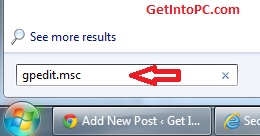
Step 1

Follow the screenshot and Click on Start button and type gpedit.msc and press enter.
increase internet speed

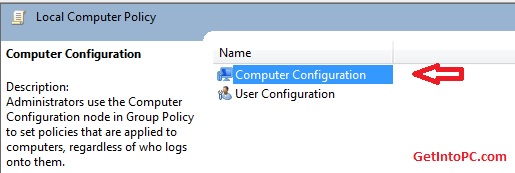
Step 2

Now double click the Computer Configuration as per screenshot.
boost internet speed

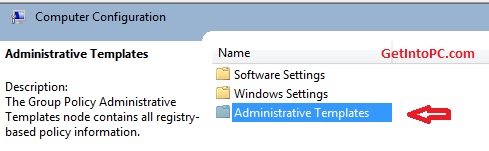
Step 3

Now double click Administrative Templates.
boost net speed

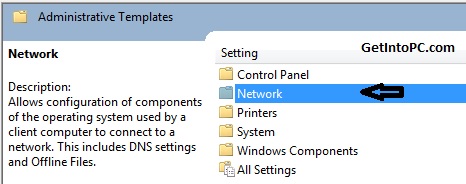
Step 4

Now Double Click Network.
increase net speed

Step 4

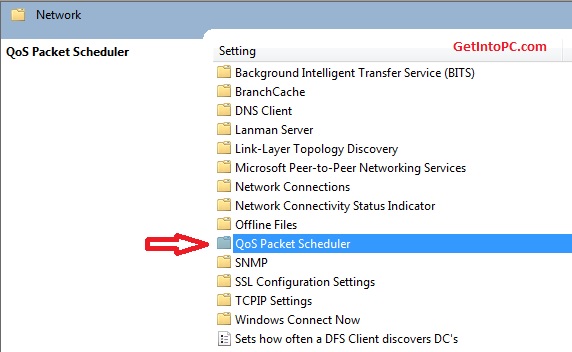
Now Double Click QoS Packet Scheduler.
optimize internet speed

Step 5

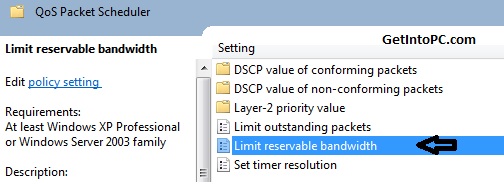
Now double click Limit reservable bandwidth.
How to increase internet speed

Step 6

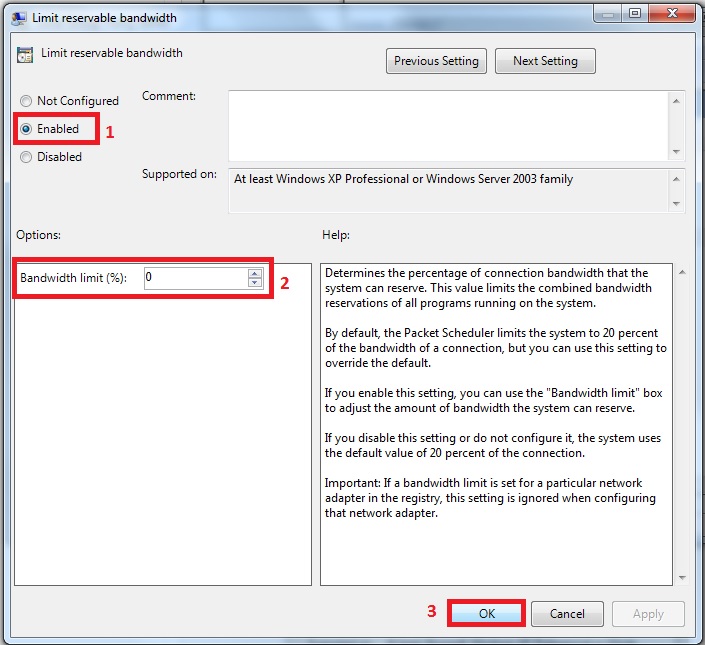
First Click on Enabled.
Then change Bandwidth Limit(%) to 0 (zero). As per screenshot.
Then Click OK.

increase and boost internet speed
After click OK button you have now cut the part of windows bandwidth. There is no reserved bandwidth now. You will feel a difference that Internet speed is optimized now.

Method 2: Use Internet Download Manager To Increase download Speed

There are third party softwares also which increase download speed significantly. You can download IDM 6.15 Free to optimize download speed. 6.15 is Latest version version of Internet download manager.

Features of IDM

Pause and Resume Downloads
Boost Download Speed
If Youtube is blocked then you can still download download youtube videos using proxy.

Method 3: Use CCleaner

Sometimes your PC is full of browsing history, cache and cookies. You can download CCleaner free which is best software to remove the garbage from C Drive. CCleaner will ultimately have an effect on Internet speed.

Important Note

Using the above methods will increase internet speed but still the final dependency is on your Internet connection bandwidth. So you should upgrade to a good connection bandwidth plan if you face huge issues even after trying above method.

If you hit any issues while trying above methods to increase internet speed then please feel free to comment here. I’ll be more than happy to assist you.

How to Install Windows XP With USB Drive

This tutorial will explain how to install windows xp with usb drive. You will learn with screenshots to make make bootable usb and copy windows xp installer.

If you are thinking to install xp from usb boot. Then you are at right place. I’ll show step by step how to boot windows xp from usb.Installing windows xp with usb is very simple. All screenshots are given to show you how to install windows xp. You’ll only needwindows XP iso aur windows XP CD. Secondly a usb drive of atleast 1 GB is required for windows xp on usb.

New Method 100% Working & Tested

Download the Rufus Software from Download Button and Open it.

After you open it. Follow Below Steps:-
  • Plug in your Pen Drive into USB Flash Port.
  • To make a Windows bootdisk (Windows XP/7) select NTFS as file system from the drop down.
  • Then click on the buttons that looks like a DVD drive, that one near to the checkbox that says “Create bootable disk using:”
  • Choose the XP ISO file.
  • Click Start
  • Done!

Another Method To Install XP With USB Pen Drive

Follow this method if the above one doesn’t work for you.


OLD Method – How To install Windows XP From USB

You’ll need WinToFlash tool to make bootable USB and install windows xp from usb.

Download Windows XP SP3 ISO

If you don’t have windows XP iso then you can download free windows XP SP3 ISO here.

Easy Steps to Install Windows XP With USB Drive

Open WinToFlash software this will help you to install windows XP.
Once the software is opened Follow below screenshot. If you have windows XP ISO then mount image to Virtual drive using ultraISO. If ultraiso is not installed then you can download ultraiso from here. Otherwise if you have Windows XP CD then insert into your CD rom.
The WinToFlash supports both CD and ISO File to be read as disk image and copy that to drive letter. The procedure is mentioned in below screenshot.
For example in my case Drive E contains Windows XP ISO image mounted. whereas F drive is my usb. Then Click Next button and your USB pen drive will be formatted. This tool will make usb bootable and will install windows XP on usb drive. Once the process is 100% then you can reboot computer and boot XP from USB.
If you hit any errors during installation of XP via USB then please comment here. This tool also supports installation of Windows 8 and Windows 7. However you can also find complete tutorial to to install windows 8 from USB and Windows 7 from USB.

NOTE:

Most people had issues on Installing XP through USB Pen drive. If all of the above fails then I suggest to burn it on CD. This works 100%.

Windows 8 USB Installation Tutorial with Screenshots

This tutorial will teach you Windows 8 USB Installation. Screenshots are given to ease users. All you need is a usb flash drive of atleast 4GB and Windows 8 Pro iso file.

Steps for Windows 8 USB Installation

First of all Download this program. This is Microsoft genuine tool to make usb drive bootable.

After you have downloaded above Windows 8 USB tool. Now follow below steps.
Open this tool from your programs.

Then Click on Browse button and go to path where your windows 8 iso file is located. If you haven’t download windows 8 then you candownload windows 8 Pro.
Click on WIndows 8 iso file and click on Open button.

Now from options click on USB Device.
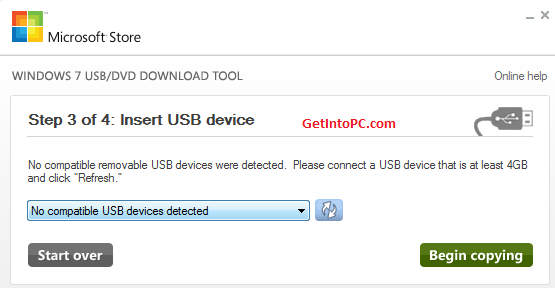
From Drop Down box select your USB Pen drive letter e.g. H: or I: or G: and then click Begin copying. After the process is completed the USB is now bootable.


Turn off your computer and plugin USB. Now Turn on PC and boot from USB. Done.
If you have any issues with this tutorial then please comment here. I have also written the tutorial to install windows 7 from usb.

New Method 100% Working & Tested

Download the Rufus Software from Download Button and Open it.

After you open it. Follow Below Steps:-
  • Plug in your Pen Drive into USB Flash Port.
  • To make a Windows bootdisk (Windows XP/7) select NTFS as file system from the drop down.
  • Then click on the buttons that looks like a DVD drive, that one near to the checkbox that says “Create bootable disk using:”
  • Choose the XP ISO file.
  • Click Start
  • Done!

Download Youtube Videos with IDM Using Proxy

If youtube is blocked in any country then you can still download youtube videos. In this tutorial I’ll share the steps to download youtube videos.download youtube videos

How to Download Youtube Videos

Now when Youtube is blocked in some countries. People often use proxy tools (Ultrasurf, Hotspot sheild or hide ip). Then many people are facing issues while download from youtube by IDM. Because IDM needs to be configured to download youtube videos when on proxy.

Youtube Downloader Steps

if you haven’t install IDM then first you need to install it. You can download IDM from below button.
download button
Make sure IDM is registered. You can follow steps in read me document of its folder.
Run Ultrasurf and wait until it is connected.
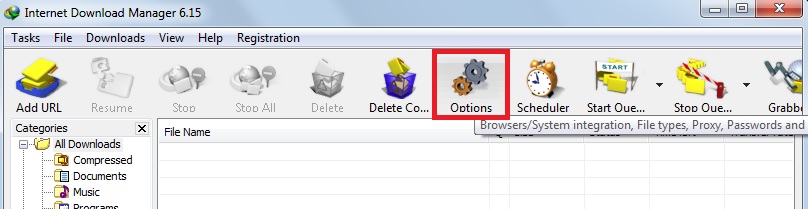
Open IDM and go to Option button.
download youtube videos
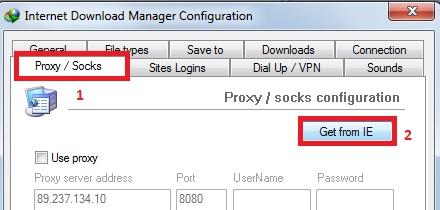
Click the “Proxy/Socks” Tab and hit button “Get From IE”
download youtube videos
Then press OK and Close the options.
Now Open Youtube in browser.
You’ll see IDM link on corner of youtube video. Click it and youtube video downloading will begin successfully.
If you hit any issues while downloading video from youtube let me know.
Disclaimer:
Note that in general, downloading other people’s videos posted on YouTube is not allowed. It is illegal. However, you can legally download your own uploads with above method.